Basic Printing Architecture - Print Spooler
Printing architecture is one of the important Windows components. It contains spoolers and printer drivers. Service which is responsible to run spooler is "Spooler" and it's display name is "Print Spooler"
Type of Printers
- Local Printer: Locally attached physical printer device.
- Remote Printer: It’ll let you access and print documents and files stored on remote devices (print servers) and networks anywhere in the world.
- RDS restricted Printer: A local printer that has been restricted to a user’s RDS session.
- Special Printer: These are the virtual printer, which print document digitally not physically. It includes Microsoft Print to PDF, Fax etc.
- Internet Printing: Print request through internet URL.
- Standard Printer: It includes RD printer connection or RD redirected printer.

Windows Application
Windows application could be any application that sends the print job. It creates a print job by calling the GDI function or directly into winspool.drv.
Graphics Device Interface (GDI)
It provides Win32 GDI functions that let applications communicate with graphics devices. It enables applications to use graphics and formatted text on both the video display and the printer or in monitor.
There are two modes in GDI. User mode and kernel mode
User Mode GDI
User mode have limited access on system resources. It has mostly software level resource to access.
Kernel Mode GDI
Kernel mode have core level access on system resources. It can provide graphic device on demand so printer can process printing tasks on print spooler.
Before proceeding further into the process we have to understand what is print spooler and print driver
Print Spooler
Print spooler is a small software that manages print jobs sent from the computer to the printer or print server. It manages the order of the documents to proceed to the print queue. Print spooler depends on HTTP and RPC service.
Location in C deive: C:\\Windows\System3spoolsv.exe
Registry: HKEY\LOCAL_MACHINE\System\CurrentControlSet\Services\Spooler
Print Driver
Print driver is a software that allows an application to communicate with printing devices.
Printer driver location:
C:\Windows\System32\drivers or C:\Windows\System32\DriverStore\FileRepository
Print driver has 3 files:
- Printer Graphics Driver: It is GDI that provides the rendering portion of the printer driver.
- Printer Interface Driver: It provides the user interface for configuration management of the print driver.
- Print Data File: This file contains all the printing device-specific information like, graphics resolution, memory, paper size and orientation, printing on both sides etc.
There are 3 driver support engines:
- PostScript (PS) or PCL
- Mini driver or monolithic drivers
- Inbox drivers
Types of print driver
V4 Drivers
It is also known as Print Class Drivers and Model Specific Drivers. New v4 printer drivers introduced new sharing method known as enhanced Point and Print, eliminating the need to install cross platform drivers
- Fast, Reliable and small in file size.
- It is designed to make sharing easier and more efficient.
- V4 driver installed from WSUS and from windows update.
- Improved crashes and hangs in applications.
- A single deriver compatable with multiple devices.
- Driver files are isolated from each other, preventing driver file name conflicts.
V4 drivers are of two types: Class drivers and model drivers.
Class drivers: v4 Class Drivers support common features to a broad set of devices that use the same printer. V4 drivers comes "In-Box driver" are called class drivers. It supports mostly used language like XPS, PS and PCL.
The problem with the V4 class drivers is that it supports limited features like Color, format, simple/duplex etc.. It doesn't support multifunctional device feature. Class drivers can be download and update from Windows update.
Model Specific Drivers: These are the V4 drivers created by Vendors to support other multifunctional device features which si not supported in class V4 drivers. You can download these drivers from vendor websites or from windows update.
V3 Drivers
The v3 driver model relies heavily on OEMs so that they can successfully run the specific feature from windows application. Administrator has to manage large number of drivers on server and client side. Sometime on requirement has to manage both 32-bit and 64-bit print drivers to support both of these client and server architectures.
In Windows Vista the size of the v3 driver was 1 GB which was huge in size even compared to Windows Vista time period. In Windows 7 MS reduces the file size up to 60* around 538MB. Many printer supports common file format PDLs like PCL, PS and XPS.
In Windows 8 MS focus on providing print class drivers insted of model specific drivers. By introducing print class drivers unnecessary line of code gets eliminated and the size become small and improved the speed of drivers.
- These are very old drivers almost 15 year old.
- Diver installation only from sever.
Winspool.drv - Client Interface
It is a client-side interface into the Spooler that provides RPC stubs (acts as a gateway) for accessing the server.
Spoolss.exe - Server interface
It is a spooler's API server. It automatically started once the system boot-up (2000 or later).
Spoolss.dll - Router
It’ll decide which print provider to call, based on a printer name or handle supplied with each function call. The router decides whether to call a local or remote printer.
Print Provider
IIt is responsible for directing print jobs to local (localspl.dll) or remote print devices (win32spl.dll). They are also responsible for print queue management operations, such as starting, stopping, and enumerating a server's print queues.
Print Processor
It convert the spooled data (EMF - RAW File) from a print job into a format that is understood by a print monitor.
Print Monitor
It is responsible for directing a print data stream from the spooler to an appropriate port driver and configuring the port on the server side as well. Both language and port monitor are user-mode DLLs.
Language monitors are user-mode DLLs: They provide a full-duplex communications language used by the client and printer. In the case of bidirectional printers, this monitor allows you to monitor printer status and send notifications, such as paper trays empty.
Port Monitor
It consists of user mode .dll files. It provides communication between the user-mode to and the kernel-mode that has full privileges to do core level hardware changes.
The local port monitor (Localspl.dll) controls parallel, serial, and USB I/O ports where a printer may be attached, and sends print jobs to local devices on any of these ports. It uses the CreateFile, WriteFile, ReadFile, and DeviceIOControl functions to communicate with kernel-mode port drivers.
Types of Port Monitor
These are the MS port monitor that work over TCP/IP protocol that helps to transfer print data. These are not the only protocols. There are other protocols that perfrom the same task. These are the only monitors that support MS cluster service (MSCS).
- Standard Port Monitor: The standard port monitor is a good option for print devices connected to the network. It is faster, scalable and has bidirectional capability which was not good or missing in LPR monitor. Supportive File: TCPMON.dll
- LPR Port Monitor: It is the old port monitor which is replaced by new Standad port monitor. Supportive File: LPRMON.dll
Note : In case if the Printing pauses after every 11 print jobs in LPR. This is because by default LPR uses RFC source and destination ports (TCP: 721-731, TCP: 515). Total 11 ports are here and in case when all 11 ports occupied then the printing will pause until the ports time out and again become available. In this senario we have to use standard TCP\IP ports instead of LPR ports.
Check How to install Port monitor
Point and Print
Point and Print refers to the capability of allowing a user to create a connection to a remote printer without providing disks or other installation media. It'll download all necessary files and configuration information are automatically from the print server to the client.
Different ways to add point and print printer device
- Universal Naming Convention (UNC):
\\host-name\shareed-printer\printer-name - Adding a printer wizard
- For Windows 11 press Windows + I --> Bluetooth & devices --> Add manually --> now select shared printer using UNC, from IP or automatically
- For Windows 10 open control panel --> Hardware --> Device & Printer --> Add printer --> now select shared printer using UNC, from IP or automatically
- Drag and Drop: Go to the same location under device and printer and drag and drop printer to client machine and double click to install.
- You can also open shared printer location from UNC path and drag and drop printer from there as well.
- Using GPP/GPO
Enhanced Point and Print
Enhanced Point and Print is a updated shared printer mechanism. It allows client to print to v4 share without downloading the manufacturer-provided device driver from the print server.
Point and Print Restriction
Without any restriction a user can create a printer connection to any server using Point and Print, computers will not show any warning for driver update and creating a printer connection to any server using Point and Print can be accessable to any user.
We can add restriction on non-admin users from GPO. Point and Print Policy
Location of GPO: User Configration\Administrative Templates\Control Panel\Printers
New Point and Print Behaviour
Microsoft changed new point and print behaviour to migrate server security issue known as "PrintNightmare". In the new behaviour it requires administrator privillages to install or update printer drivers using point to print. Now if there is any driver update on the client computer it'll pop up the need to update or install the driver, which requires admin credentials.
How to Set RestrictDriverInstallationToAdministrators using Registry
Open the command and run the command HKEY_LOCAL_MACHINE\Software\Policies\Microsoft\Windows NT\Printers\PointAndPrint" /v RestrictDriverInstallationToAdministrators /t REG_DWORD /d 1 /f
How to Set RestrictDriverInstallationToAdministrators using Group Policy
Make sure you are using updates released October 12, 2021 or later. Now go to GPO Computer Configuration > Administrative Templates > Printers. Set the Limits print driver installation to Administrators setting to "Enabled". This will set the registry value of RestrictDriverInstallationToAdministrators to 1.
How Install print drivers when the new default setting is enforced
If you set RestrictDriverInstallationToAdministrators as not defined or to 1. In that case you want to install printer then you have 3 methods to install it.
- While installing printer drivers it'll prompt for admin credentials and you have to provie it.
- Add the necessary printer drivers in the OS image.
- Set RestrictDriverInstallationToAdministrators to 0 for temperoty period to install printer drivers.
Note : Still you are not able to install printer then you nedd to disable Only use Package Point and Print Group Policy.
How to Deploy printers by using Group Policy
This method of installing a printer is particularly useful when deploying printer drivers to users who are not members of the local Administrators group and are running Windows client / server.
Here are the steps you need to follow so from the PMC you can automatically deploy Group Policy on printer connections to users or computers and install the appropriate printer drivers.
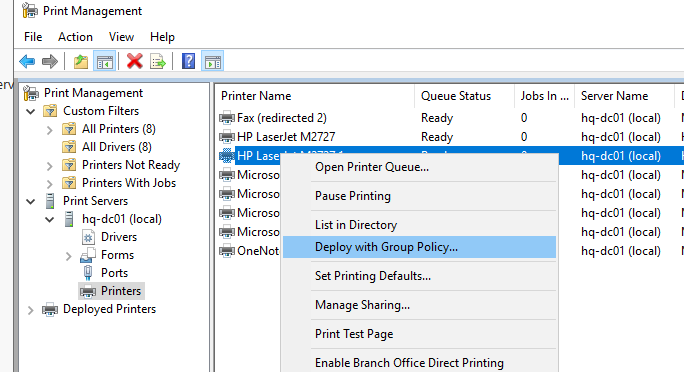
How to Secure Printing using GPO
- Point and Print Restrictions :
- Package Print and print / Approved servers :
- Enable Device Control Printing Restrictions
- List of Approved USB-connected print devices
Printer Driver Isolation
Printer driver isolation is a process where printer driver run seperate processes that are seperate from the process in which the print spooler runs. That means if the printer driver fails then it'll not impact or crach print spooler and maintain the stability. Printer spooler basically 3 components that are Print driver configuration modules, Print processors and Rendering modules.
In the old version of windows all printer driver ran in the same prcoess in spooler. And if the single driver component failed, it'll couse the entire print subsystem to fail.
This problem was fixed in Windows 7 and Windows Server 2008 R2. Here an Administrator can configure the printer driver isolation where a printer driver to run in an isolated process and prevent it from crashing print spooler process.
Service responsibe for printer isolation is DCOM server process launcher. PrintDriverIsolationHost.exe file process in taskbar consist of Print process and Print driver components.
Types of modes in printer isolation
There are 3 modes in printer isolation which are None, share and isolated.
| Driver-isolation mode | Meaning |
|---|---|
| None | Print Spooler and drivers share a process called spoolsv.exe. |
| Shared | All drivers run in a single process called printisolationhost.exe, which is separate from the Print Spooler. | Isolated | Each individual driver will run in its own printisolationhost.exe process |
What are spool files?
Spool files are the files used by OS that communicate with printer and provide instruction that how to print a file or a document.
Local printer spool file location: %systemroot%\System32\Spool\Printers
Registry location: HKLM\SYSTEM\CurrentControlSet\Control\Print\Printers\<printer name>
| Extensions | Discription |
|---|---|
| .SPL | This is an actual spool file containing the print job. |
| .SHD | It contains the number of designated printer. Job priority, name of the user who sents the job. |
Rendering
Rendering means converting content that a user wants to print into data for the printer to read. There are two types of rendering: Client-Side Rendering and Server-Side Rendering
Client-Side processing
In the client side rendering Application will create a print job, then client printer driver will renders/translates the document to a printer-specific PDL format (PCL, PostScript, XPS) before handling the job to the server. After that RAW-EMF fiele send to sever for queuing and printing by the print spooler. As a result, It’ll take less processing load on the server and improve stability.
Client-side Rendering help in Driver mismatch problem. When windows application create a print job request and because the spool job and randering of EMF format data will be done on same computer. So it doesn't matter what driver client has or incompatible with server drievr.
It also Support for offline printing which means the print-user can access and spool print job even the server they are not conneted. Rendering will be done locally and when the print server will become active or connect to print user system then the print job which was on the end-user will be send to the print server.
Server-side processing
Windows client sends the unrendered print data to the server spooler on the server, and the server requires more processing to render the content to a printer-specific format..
Print and Document Services
Print and Document Services role services in server 2008 enables you to to share printers on a network also help you to manage network printer management tasks. You can deploy and migrate the print connection using GPO. In Windows Server 2008 R2 it comes with new feature Distributed Scan Server. Now you can share print server and scan server as well.
What's New in Print Document Service
- Printer deployment and migration
- High Availability Printing
- Printer driver isolation
- Print Management snap-in improvements
- Improved Client-Side Rendering (CSR)
- UI improvement
Print Management Console
Print management console allows you to install, view, and manage all of the printers related activities in your organization from any computer running Windows Server. You can access it from MMC snap-in tool.
Benefit of Print Management Console
- Centralized management system to install, view, and manage all the printers in your organization.
- Custom filter to manage your printers according to different criteria, such as status, location, or driver.
- It provides a detailed information and reports on printer usage, performance, and errors, that can help you optimize your printing environment and troubleshoot issues.
- It integrates with other tools such as Event Viewer, Printer server role and Queue Migration wizard.
- Deploying and update printer drivers on multiple computers using GPO.
- Client Side Rendering (CSR)
- Printer Driver isolation (PDI)
Driver Packages
It is a set of files used during a device installation. It includes .INF file that contains all of the information that device installation components which is used to install device drivers.
Package-Aware Print Drivers
If the driver package files contain any unique file which are not listed in other print driver packages then we have use the PackageAware=TRUE keyword in the INF.
Second if the files ia a driver package are shared with other print driver packages then move that shared file to seperate code driver and use PackageAware and CoreDriverDependencies keywords to seperate it to core drivers. This is very important to avoid file version conflicts during various remote installation scenarios.
Restricts package point and print to approved servers
It is a set of files used during a device installation. It includes .INF file that contains all of the information that device installation components which is used to install device drivers.
Policies
Restricts package point and print to approved servers: This policy setting restricts package point and print connections to approved servers. If you enable this policy then user will only be able to use Package Point and Print on print servers approved by the network administrator. Second thing is that the client system will check all the driver signature downloaded from the print server.
Only Use Package Point and Print: It restrict the clients computers to use package point and print only. Driver signature also check here.